
Introduction
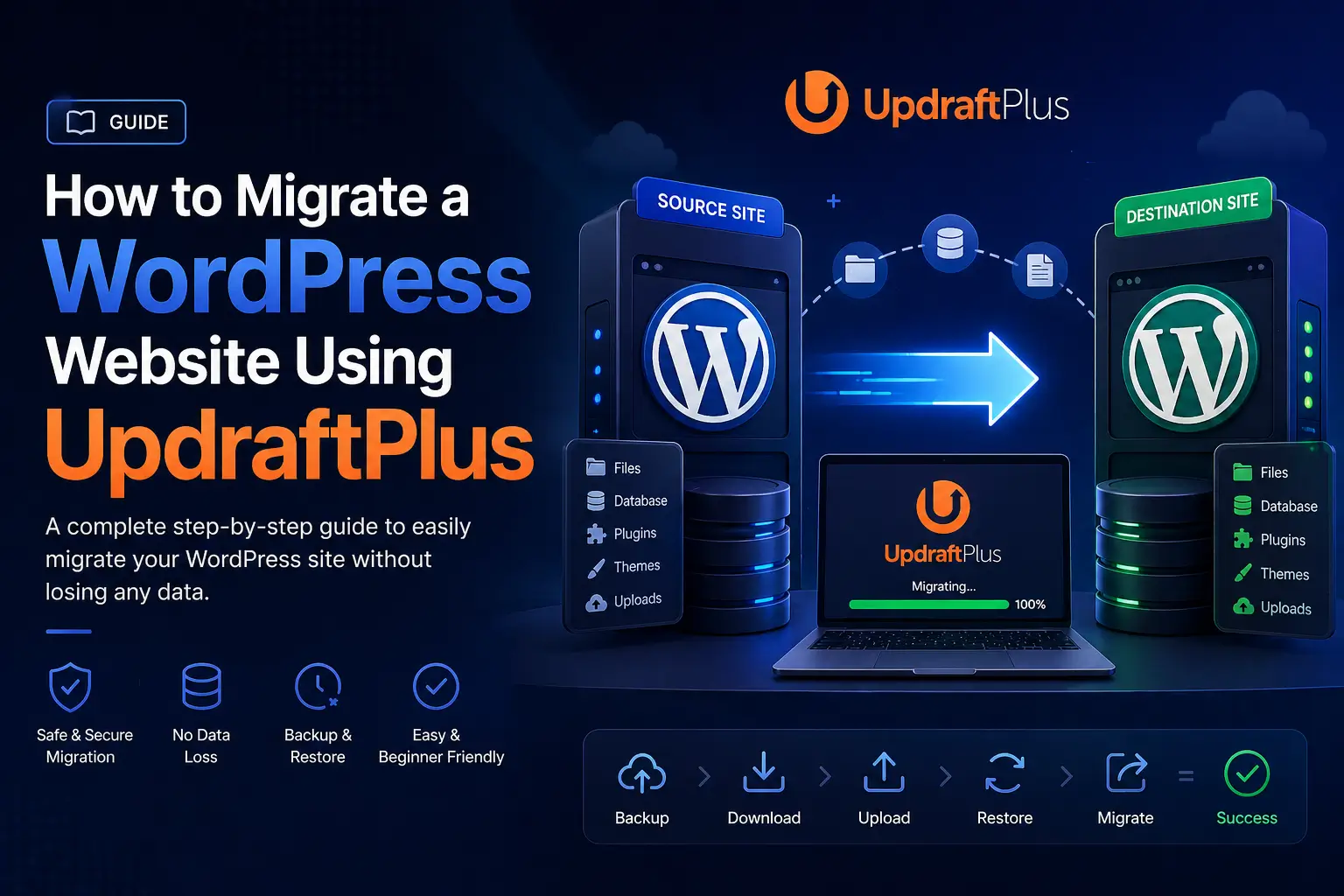
Website migration means moving your WordPress website from one domain or hosting to another. In this guide, you will learn how to safely migrate your website using the UpdraftPlus plugin in a very simple way. Even beginners can follow this step-by-step tutorial easily.
Step 1: Install UpdraftPlus Plugin on Old Website
First, log in to your old WordPress website.
Then click Activate
Go to Plugins → Add New
Search for UpdraftPlus
Click Install Now
Step 2: Connect Google Drive (Remote Storage)
Now we will connect your backup to Google Drive.
Login with your Gmail account and allow permissions
Go to Settings → UpdraftPlus Backups
Open the Settings tab
Find Remote Storage
Select Google Drive
Click Sign in with Google
Once connected successfully, your backup will be saved in Google Drive.
Step 3: Create Backup of Your Website
Now take a full backup of your website.
- Go to UpdraftPlus → Backup/Restore
- Click Backup Now
- Select all options (files + database)
- Start backup process
Wait until backup is completed
After completion, scroll down and click Rescan remote storage
Step 3: Create Backup of Your Website
Now take a full backup of your website.
- Go to UpdraftPlus → Backup/Restore
- Click Backup Now
- Select all options (files + database)
- Start backup process
Wait until backup is completed
After completion, scroll down and click Rescan remote storage
Step 4: Install WordPress on New Domain/Hosting
Now go to your new domain or hosting.
- Install fresh WordPress
- Login to WordPress dashboard
- Install UpdraftPlus plugin again
- Activate it
This is your new empty website where we will restore backup.
Step 5: Connect Same Google Drive Account
Now connect the same Google Drive where backup is stored.
- Go to UpdraftPlus → Settings
- Select Google Drive
- Login with same Gmail account
- Authorize connection
This will allow access to your backup files.
Step 6: Restore Website Backup
Now restore your old website on the new domain.
- Go to UpdraftPlus → Backup/Restore
- Scroll down to existing backups
- Click Scan Remote Storage
- Your backup will appear
- Click Restore
Select all components:
- Plugins
- Themes
- Uploads
- Database
Start restore process and wait until it completes
Step 7: Migration Completed Successfully
Once restoration is complete:
- Click Done
- Your website will reload
- Everything will be migrated successfully
Your old website is now fully transferred to new domain/hosting.
Need Help?
If you get confused, you can:
Watch the full video tutorial
test
Comments are closed.