
Introduction
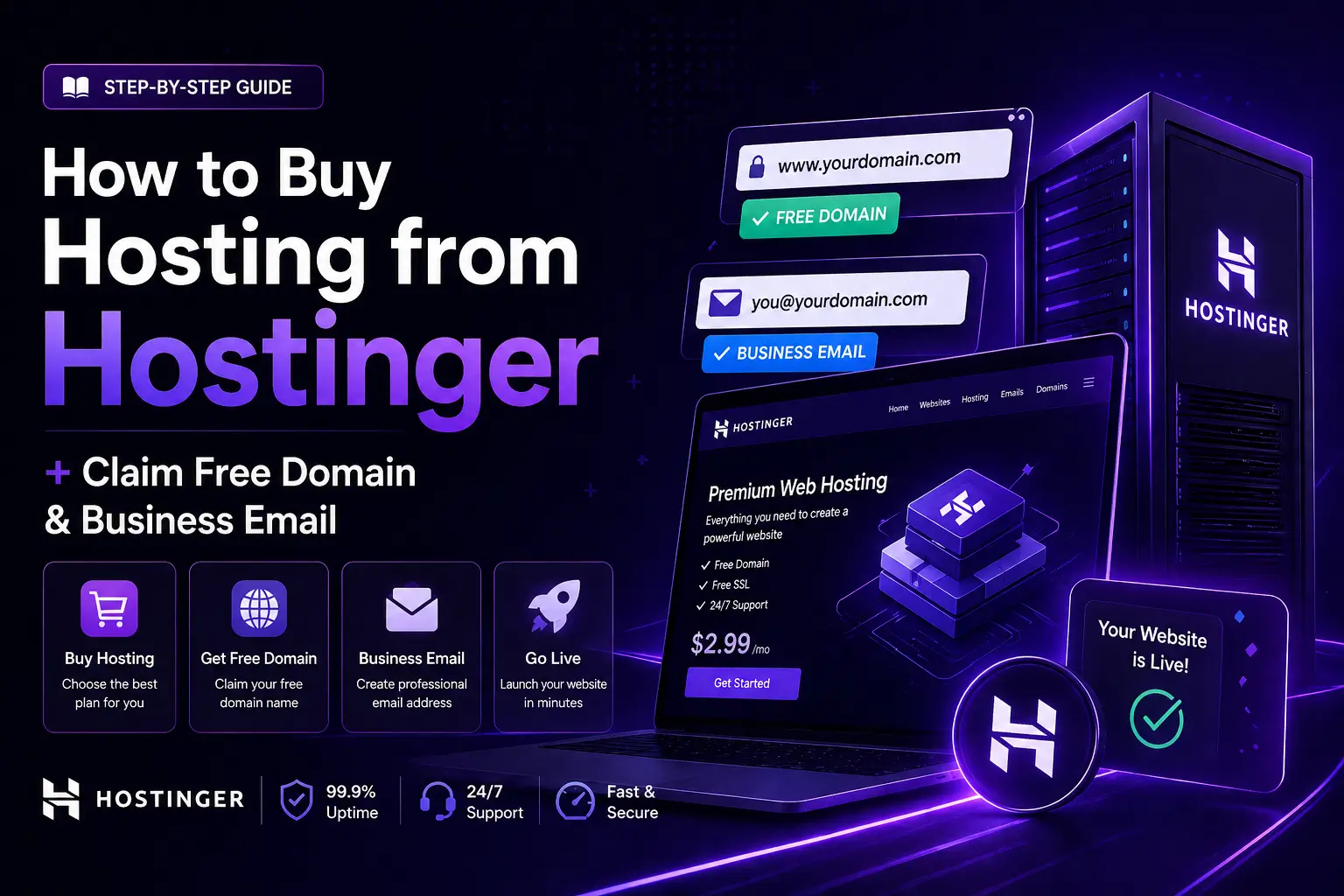
If you want to start a website, the first step is to buy hosting. In this guide, you will learn how to purchase hosting from Hostinger, and also how to get a free domain and business email with your plan.
Even beginners can follow this easily.
Step 1: Go to Hostinger Website
Open your browser
Search: Hostinger
Open official website
Choose a hosting plan (recommended: Premium or Business plan)
Step 2: Select Your Hosting Plan
Click on Choose Plan
Select billing period (1 year or 2 years recommended)
Continue to checkout
Higher plan = more features like email + free domain
Step 3: Claim Your Free Domain
After selecting plan:
- Hostinger will show Free Domain option
- Search your domain name (e.g. yourbusiness.com)
- If available, click Claim
Your domain will be free for 1 year
Step 4: Create Account & Payment
- reate your Hostinger account
- Fill details (email, password)
- Complete payment process
After payment, your hosting is activated
Step 5: Set Up Free Business Email
Now create professional email:
- Go to Email → Business Email
- Click Create Email Account
- Enter:
- Email name (info@yourdomain.com)
- Password
Your professional email is ready
Final Result
Now you have:
Need Help?
- Hosting account
- Free domain
- Professional business email
Watch video tutorial